Graph Editor
The graph editor is the primary authoring tool in Threader. It opens as a Unity EditorWindow and runs entirely in edit mode — no Play mode required to build or preview dialogues.
Opening the editor
Double-click any Dialogue Graph asset in the Project window. The editor opens and loads that graph automatically. You can also open it via Threader → Graph Editor in the Unity menu bar and then load a graph from the sidebar.
Threader → Help & Documentation opens the online documentation in your default browser.
Layout
The editor is split into two panels separated by a draggable divider:
- Left panel — Sidebar: project operations, graph settings, navigation, and node creation
- Right panel — Canvas: infinite scrollable graph canvas where nodes live
Both panels remember their sizes between sessions via EditorPrefs.
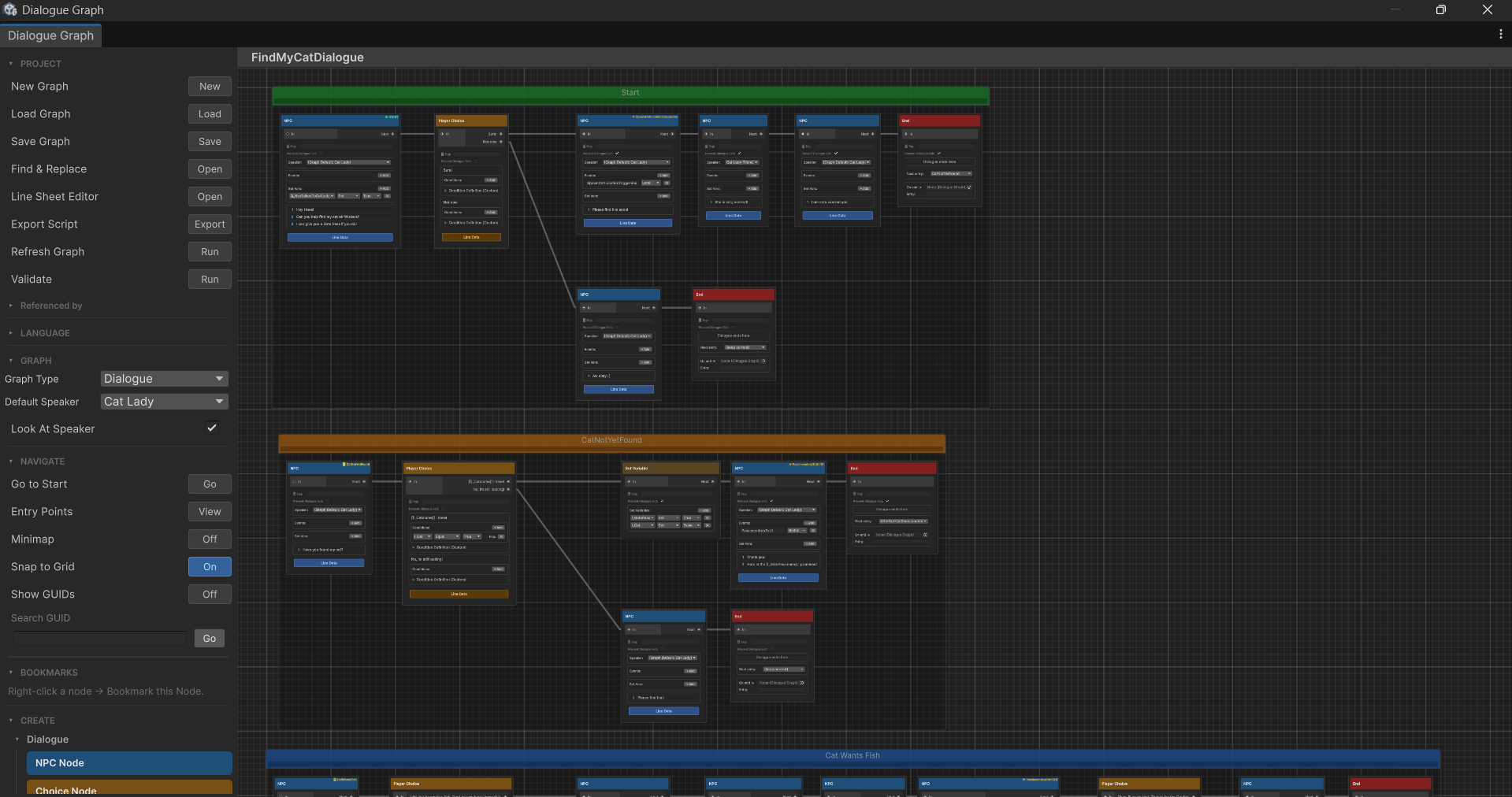
Canvas controls
| Action | How |
|---|---|
| Pan | Middle-mouse drag, or Alt + left-drag |
| Zoom | Scroll wheel. Range: 0.05× to 5× |
| Select a node | Left-click |
| Multi-select | Left-drag a box, or Shift+click individual nodes |
| Move nodes | Left-drag selected nodes |
| Connect nodes | Drag from an output port to an input port |
| Disconnect an edge | Right-click the edge → Delete, or select and press Delete |
| Context menu | Right-click on the canvas background or a node |
| Frame selected | F |
| Frame all | A |
Sidebar sections
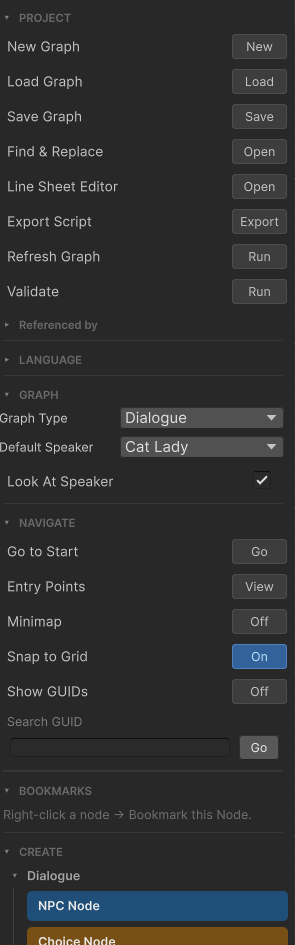
PROJECT
| Button | What it does |
|---|---|
| New | Prompts for a name and creates a new DialogueGraph asset in the currently selected folder |
| Load | Opens an object picker to load an existing graph |
| Save | Writes all unsaved changes to the asset on disk (Ctrl+S also works) |
| Validate | Runs the graph validator and shows a list of warnings/errors inline. The validator re-runs automatically whenever nodes or edges change while the panel is open. |
| Find & Replace | Opens the find/replace panel (see below) |
| Line Sheet Editor | Opens the Line Sheet Editor window for the currently loaded graph. See Line Sheet for details. Hidden for Bark graphs — bark graphs use each BarkNPCNode's own Line Data popup instead. See Bark System — line sheets. |
| Export Script | Walks the graph from the start node and writes a plain-text .txt screenplay file. Output includes [Speaker Name] headers, dialogue text, numbered player choices, and branch labels. Silent nodes are invisible. Unreachable nodes are appended at the bottom. The file opens in Explorer/Finder immediately after export. |
Referenced by is a collapsible sub-section inside PROJECT that lists every other graph in the project that references the currently loaded graph as a sub-graph. This is scanned automatically when a graph is loaded. If no graph references it the panel shows "Not referenced by any graph."
An orange ● Unsaved indicator appears in the toolbar whenever the graph has changes not yet written to disk. Closing the window or switching graphs while unsaved changes are present will prompt you to save.
LANGUAGE
Controls which language is previewed on node text in the editor canvas. See Translation & Localization for the full translation workflow.
| Control | Description |
|---|---|
| Preview (dropdown) | Lists every language defined in the graph's LineSheets list. Selecting a language shows the corresponding PreviewText values from that language's sheet on all NPC and choice nodes in the canvas. Set to (none) to show the original node text. |
The preview language does not affect runtime behaviour — it is a visual aid for checking translations in the editor.
SPEAKERS
(Renamed from "GRAPH" — the section now focuses purely on speaker configuration. The Graph Type toggle has moved to the DialogueGraph asset's own Inspector, and the graph's type is shown as a read-only · Dialogue / · Bark badge next to the graph name in the editor's top bar.)
| Field | Description |
|---|---|
| Default Speaker | (Dialogue graphs.) Fallback speaker name for any NPC node whose own Speaker field is blank. Populated from your SpeakerRoster assets. Nodes with no override show (Graph Default: X) in their dropdown, updating live as you change this value. Hidden for Bark graphs. |
| Look At Speaker | (Dialogue graphs only.) When ticked, any scene object that implements IDialogueFocus (e.g. a first-person camera controller) will automatically rotate to face the current speaker's transform each time an NPC node fires. Toggle this per-graph. See UI — Camera look-at. Hidden for Bark graphs. |
| Bark Speakers | (Bark graphs only.) Replaces the two fields above when the loaded graph's Graph Type is Bark. A roster-picker listing speakers from every BarkSpeakerRoster assigned to DialogueManager, split into In this graph and Available from roster. Move names between the two lists to control which speakers appear in this graph's BarkNPCNode dropdowns and on BarkSource.speakerName. See Bark System — multi-speaker barks. |
To change a graph between Dialogue and Bark, select the DialogueGraph asset and use the Graph Type dropdown at the top of its Inspector (not in this sidebar). If the graph already has nodes, a confirmation dialog warns that switching type may break existing nodes, line sheets, and connections before applying the change. Bark graphs run on a non-blocking runner via PlayBark() and do not support Player Choice Node, Player Node, Wait Node, or Sub Graph Node — see Bark System for the full list of supported nodes.
NAVIGATE
| Button / Control | What it does |
|---|---|
| Go to Start | Pans and zooms the canvas to frame the start node |
| Entry Points | Lists all named entry points defined in the graph; click any to jump there |
| Minimap | Toggles the floating minimap overlay (preference saved per session) |
| Snap to Grid | Snaps all node movement to a 20 px grid (preference saved per session). Takes effect immediately on drag-end. |
| Show GUIDs | Displays each node's full GUID above the Tag field. Useful when cross-referencing GUIDs from error messages. Preference is saved via EditorPrefs and restored across sessions. |
| Search GUID | Text field + Go button. Paste a full GUID or the 8-character prefix shown in error messages, then press Go or Enter to pan and select the matching node. |
BOOKMARKS
Lists all bookmarked nodes in the current graph. Click any row to select and frame that node on the canvas.
- Bookmark a node — right-click any node → Bookmark this Node
- Rename — click the ✎ pencil button on a row to edit the name inline. Press Enter or click away to confirm; Escape to cancel. Empty names revert to the auto-generated node label.
- Bookmarks are removed automatically when the bookmarked node is deleted.
- Persisted per-graph in
EditorPrefs(keyed by graph GUID); survive editor restarts.
CREATE
A set of colour-coded pills for every node type, grouped into categories:
- Dialogue — NPC Node, Player Node, Player Choice Node, End Node, Bark NPC Node
- Logic — Branch Node, Jump Node, Random Node, Weighted Random Node, Switch Node, Sub Graph Node
- Data / Events — Set Variable Node, Fire Event Node, Play Audio Node, Animator Trigger Node
- Utility — Debug Node, Wait Node, Group, Sticky Note
Drag a pill onto the canvas to place the node at the drop position.
Dialogue graphs hide Bark NPC Node. Bark graphs hide NPC Node, Player Node, Player Choice Node, Wait Node, and Sub Graph Node — existing NPC nodes left over in a bark graph from before this pill swap keep working, they're just no longer offered when creating new nodes. See Bark System for the full supported-node list.
NODE TEMPLATES
Lists all DialogueNodeTemplate assets found in the project. Each pill shows the template name and node count [N].
- Save a template — select nodes in the graph, then click Save Selection. Internal connections are preserved; external connections are dropped.
- Stamp a template — drag a template pill from the sidebar onto the canvas. All nodes receive fresh GUIDs; internal wiring is re-connected automatically.
- Project window drag — dragging a
.assetfrom Unity's Project window onto the canvas also works. - Refresh — re-scans the project for template assets.
- Right-click a pill — Rename… (updates display name and
.assetfilename via a modal window) or Delete (confirmation dialog).
Keyboard shortcuts
| Key | Action |
|---|---|
N |
Create NPC Node |
P |
Create Player Node |
C |
Create Player Choice Node |
E |
Create End Node |
D |
Create Debug Node |
J |
Create Jump Node |
B |
Create Branch Node |
V |
Create Set Variable Node |
R |
Create Random Node |
F2 |
Create Fire Event Node |
F3 |
Create Play Audio Node |
F4 |
Create Animator Trigger Node |
F5 |
Create Wait Node |
F6 |
Create Sub Graph Node |
W |
Create Weighted Random Node |
S |
Create Switch Node |
G |
Group selected nodes into a comment box |
Z |
Add a sticky note at the cursor position |
F |
Frame / zoom to selected nodes |
A |
Frame all nodes |
Space |
Open node search window |
Ctrl+D |
Duplicate selected nodes |
Ctrl+C / Ctrl+V |
Copy and paste selected nodes |
Ctrl+Z |
Undo last graph change |
Delete / Backspace |
Delete selected nodes or edges |
Ctrl+S |
Save graph |
Typing shortcuts are blocked while a sticky note, text field, or other input control has focus — you won't accidentally create nodes while typing dialogue text.
Node context menu
Right-click any node to open its context menu. The menu is a styled dark panel grouped by category (Dialogue / Logic / Data & Events / Utility / Selection) and filters out bark-incompatible nodes automatically when Graph Type is set to Bark.
| Option | Effect |
|---|---|
| Set as Start Node | Makes this node the graph's entry point (green ▶ START badge) |
| Set as Entry Point… | Opens a dialog to assign a named entry-point key to this node (yellow ⚑ badge appears) |
| Remove Entry Point | Clears the entry point key from this node |
| Set Colour / Tag | Opens the colour picker (None / Red / Orange / Yellow / Green / Blue / Purple) |
| Clear Colour / Tag | (Only shown when a colour is already set.) Resets the node colour to None |
| Bookmark this Node | Adds this node to the BOOKMARKS sidebar panel. When the node is already bookmarked this entry changes to Remove Bookmark |
| Go to Target (tagname) | (Jump nodes only) Selects and frames the node that owns the jump's target tag. Greyed out if the tag is unset or not found. |
| Go to Entry Point (keyname) | (End nodes only) Selects and frames the node that owns the entry point key. Greyed out if the key is unset or not found. |
| Remove from Group | (Nodes inside a group only) Removes the node from its containing group box. |
| Duplicate | Creates a copy of the node with a new GUID, positioned slightly offset |
| Copy GUID | Copies the node's full GUID to the clipboard. Useful for pasting into the Search GUID field or external tools. |
| Delete | Removes the node and all edges connected to it |
A 4 px accent border on the left side of the node shows any assigned colour. The colour is purely organisational — it has no effect on execution.
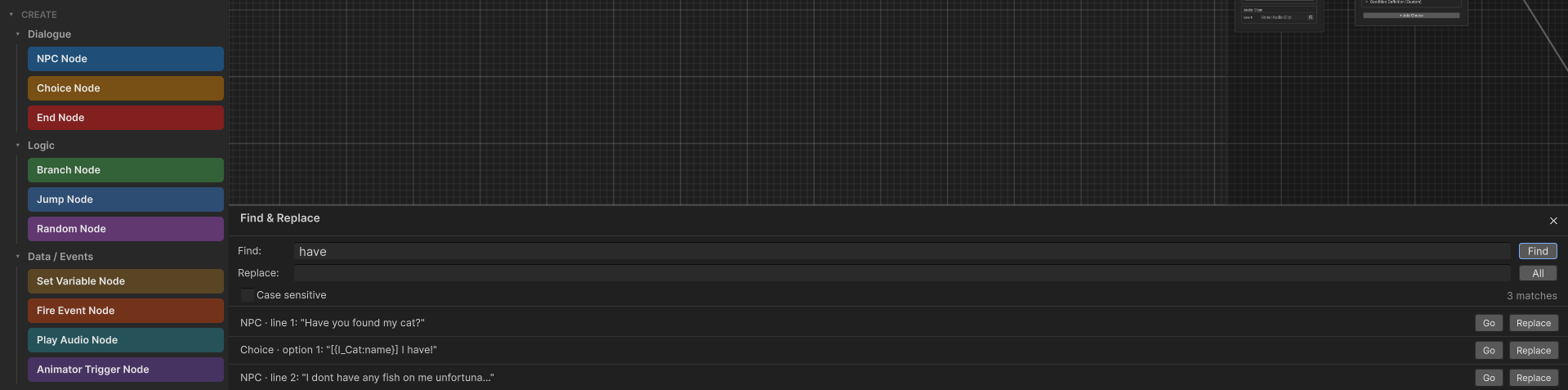
Find & Replace
Open via PROJECT → Find & Replace in the sidebar. Searches all NPC line text, Player Node line text, and Player Choice button text in the currently loaded graph.
| Field | Description |
|---|---|
| Find | Type a term and press Enter or click Find to search |
| Replace | The replacement text |
| Case Sensitive | Toggle; re-runs the search automatically when changed |
| Results list | Each match shows: speaker name or type, line index, and a preview snippet |
Per-result buttons:
- Go — selects and frames that node in the graph
- Replace — replaces that single occurrence (undoable)
- All — replaces every match at once (undoable, single undo step)
After any replacement the graph view refreshes and the search re-runs automatically so remaining matches are immediately visible.
Comment / Group boxes
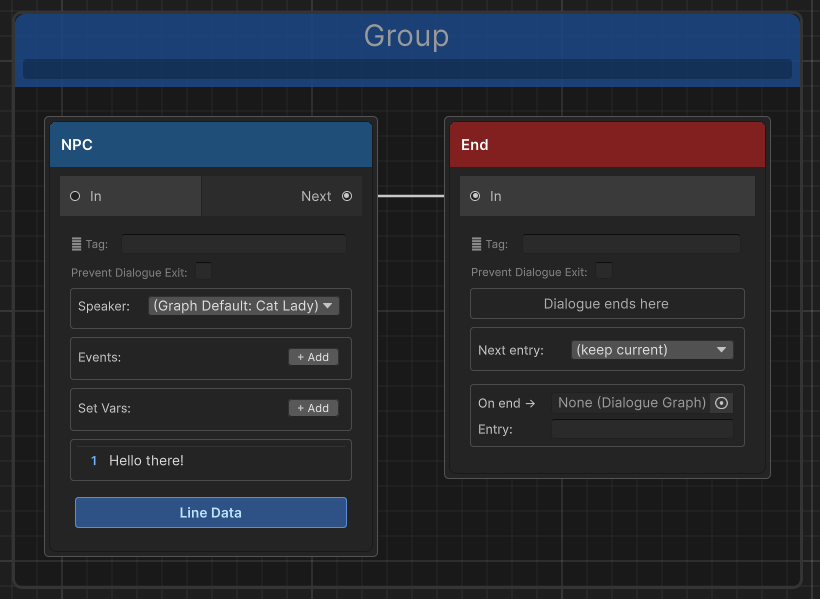
Select one or more nodes and press G (or drag the Group pill from the sidebar) to wrap them in an organisational comment box.
- Double-click the title to rename it
- Click the Notes text area below the title to type multi-line annotations (saved with the graph)
- Right-click the group to open its context menu:
- Rename — edits the group title inline
- Colour submenu — set colour (None / Red / Orange / Yellow / Green / Blue / Purple)
- Delete Group (keep nodes) — removes the group box but leaves all nodes in place
- Delete Group and Nodes — removes the group box and deletes every node inside it
- Drag nodes in and out of a group to include or exclude them
- Sticky notes can also be dragged into a group; they snap in and are saved as part of that group
Groups are purely visual — they have no effect on dialogue execution.
Sticky notes
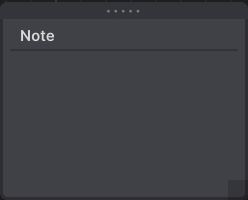
Press Z or right-click the canvas → Add Sticky Note to place a free-floating annotation anywhere on the canvas.
- Click the title or body to edit the text inline
- Drag by the title bar to reposition
- Drag the bottom-right corner handle to resize
- Drag onto a Group box to attach it to that group
Right-click a sticky note for:
| Menu | Options |
|---|---|
| Theme | Classic / Black / Dark / Orange / Red / Purple / Teal |
| Font Size | Small / Medium / Large / Huge |
Sticky notes are saved with the graph asset and are never shown at runtime.
Dialogue Preview Window
The preview window is covered on its own page — see Dialogue Preview Window.
Validation
Click Validate in the sidebar PROJECT section to run a static check over the loaded graph. Results appear in a panel at the bottom of the editor window. Each issue lists a description and a Go button to jump directly to the offending node.
Reading console errors
All runtime LogError and LogWarning messages from Threader include the graph name, node type, and a short node ID (8-character GUID prefix). Example:
[Threader] JumpNode 'a3f9c812' in graph 'VillagerGraph': tag 'shop_loop' not found on any node.
Paste the 8-char prefix into the Search GUID field in the NAVIGATE sidebar and press Go to jump straight to that node. Clicking the console entry pings the source graph asset in the Project window.
Unity does not support opening a custom editor window from a console double-click (that callback is reserved for
.csfiles). The asset ping is the closest equivalent.
The validator checks for:
- No Start node set on the graph
- NPC node has no lines, or all lines have blank text
- NPC node output is not connected
- NPC node speaker name is not found in any assigned Speaker Roster (only checked when a roster is assigned)
- Player Choice node has no choices
- Player Choice node has a choice with blank text (reported as “choice N has blank text”)
- Player Choice node has a choice with no outgoing connection
- Branch node has no conditions (always takes False path)
- Branch node True or False output is not connected
- Jump node has no target tag set
- Jump node target tag does not exist on any node in the graph
- Set Variable node has no actions
- Set Variable node output is not connected
- Random node has no outputs, or all outputs are unconnected
- Weighted Random node has no outputs, all outputs are unconnected, or all weights are zero
- Switch node has no cases (always routes to Default), a case output is not connected, or the Default output is not connected
- A Bark graph contains a Player Choice node (choices are not supported in bark graphs and will never be reached)
- End node Next entry key references an entry point not defined in this graph
- Named entry point references a node that no longer exists
- A node with Prevent Dialogue Exit enabled has no reachable End node (would leave the player permanently stuck)
Live validation: while the validator panel is open, it re-runs automatically whenever nodes or edges change. Close the panel to stop live updates.
After a script recompile
Unity recompiles all scripts when you save a .cs file. The graph editor re-loads automatically after a recompile. If the canvas appears empty after a recompile, click Load in the sidebar or close and re-open the window.