Node Reference
Threader has 17 node types. This page documents every field and the exact order in which things happen at runtime.
All nodes share:
- ⚐ Tag field — a string identifier used as a Jump target. Set this on any node you want a Jump Node to redirect to. Leave blank if this node is never a jump target. Tags must be unique within a graph.
- Prevent Dialogue Exit toggle — when enabled,
DialogueManager.CancelDialogue()and the built-in Escape-key handler are ignored while this node is active. Use to protect nodes that write variables, grant rewards, or play mandatory cutscene lines. The validator will warn you if a locked node has no reachable End node (which would leave the player permanently stuck). - Right-click context menu — Set as Start Node, Set as Entry Point, Remove Entry Point, Set Colour, Bookmark this Node, Duplicate, Delete, Copy GUID.
Bark graphs (graphs with Graph Type set to Bark in the
DialogueGraphInspector) do not support Player Node, Player Choice Node, Wait Node, or Sub Graph Node. These node types are hidden from the sidebar and right-click context menu when a bark graph is open. NPC Node is also hidden from the CREATE sidebar in bark graphs — its bark-native replacement is Bark NPC Node, which adds per-speaker audio and animation to a single shared line.
NPC Node [N]
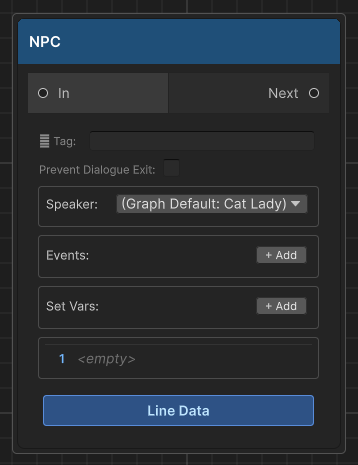
Shows one or more spoken lines from a character. The runner pauses after displaying each line and waits for the player to advance before moving to the next line. When all lines are shown, execution moves to the connected output node.
Execution order
- Set Vars actions are applied to
DialogueVariables(in list order) DialogueRunnerfiresOnNPCNode→DialogueManagerreceives the node- Events are fired inside the handler — local events trigger
OnNodeEvent; global events also triggerOnGlobalNodeEvent - Speaker is resolved and line playback begins
- Each Line in the list is displayed in sequence —
OnNPCLinefires per line, then the UI typewriter runs, then the per-linelinePausedelay, then the player advances (or space-to-skip) - After the last line,
Continue()is called and execution moves to the next connected node
Fields
Speaker
The name of the character speaking. Must exactly match the Speaker Name field on the NPCDialogue component in the scene.
- Leave blank to inherit the graph's Default Speaker
- Used for: camera look-at target, Animator resolution, 3D spatial audio positioning
- If the name is set but no matching
NPCDialogueis found in the scene, a warning is logged and the line is still displayed (just without look-at/audio positioning)
Events (+ Add)
Fires named string events when this node is reached (before lines are shown).
| Field | Description |
|---|---|
| Key | The event string. Received by OnNodeEvent subscribers and NPCDialogue.NodeEvents response list. See Events. |
| Scope (dropdown) | Local — fires OnNodeEvent only. Guard your handler with CurrentActor to scope it to this NPC. Global — fires both OnNodeEvent and OnGlobalNodeEvent. No guard needed — intentionally broadcast to all listeners. See Events — Local vs Global. |
Multiple events are fired in list order. Empty keys are skipped.
Set Vars (+ Add)
Applies variable write operations the moment this node is reached, before events fire.
| Field | Description |
|---|---|
| Variable Name | Dropdown of variable names from all assigned DialogueVariables assets |
| Operator | Set / Add / Subtract / Toggle |
| Value | Operand string. Use true/false for Bool. Ignored for Toggle. |
Operations by type:
| Operator | Bool | Int | String |
|---|---|---|---|
| Set | var = value |
var = value |
var = value |
| Add | (unsupported) | var += value |
(unsupported) |
| Subtract | (unsupported) | var -= value |
(unsupported) |
| Toggle | var = !var |
(unsupported) | (unsupported) |
Lines
The node shows a read-only preview of its lines. To add or edit lines, click the Line Data button at the bottom of the node — a popup opens where you can:
- Add / remove lines with the + Add Line button
- Edit the text of each line directly in the popup
- Assign an audio clip per speaker per line
- Add animator actions per speaker per line
Each line's text field supports {varName} and {varName:name} tokens (see Variables — text substitution).
Player Node [P]
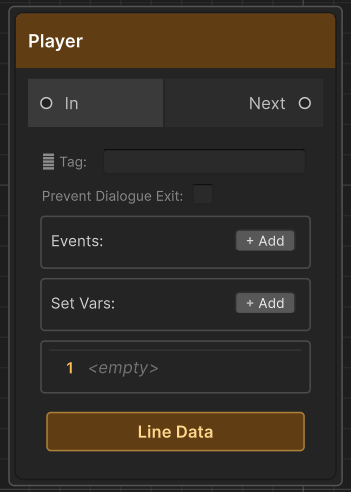
Shows one or more scripted lines spoken by the player character. Like an NPC Node, the runner auto-advances through the list and waits for the player to advance before moving to the next line — but there is no Speaker field. Lines are always attributed to the player, and DialogueManager fires a separate OnPlayerLine event instead of OnNPCLine, so your UI can style player lines differently (e.g. a right-aligned bubble with no speaker label).
Use this for games where the player character has a voice, or where a scripted player response should play automatically before an NPC reply — without requiring the player to click a choice button. If you need the player to actually pick between options, use Player Choice Node instead.
Not available in bark graphs. Player Node is hidden from the sidebar and context menu when Graph Type is set to Bark.
Execution order
- Set Vars actions are applied to
DialogueVariables(in list order) DialogueRunnerfiresOnPlayerNode→DialogueManagerreceives the node- Events are fired inside the handler — local events trigger
OnNodeEvent; global events also triggerOnGlobalNodeEvent - Each Line in the list is displayed in sequence —
OnPlayerLinefires per line, then the UI typewriter runs, then the per-line pause, then the player advances (or space-to-skip) - After the last line,
Continue()is called and execution moves to the next connected node
Fields
Events (+ Add)
Same as the NPC Node — Events field: fires named string events (Local/Global scope) when this node is reached, before lines are shown. See Events.
Set Vars (+ Add)
Same as the NPC Node — Set Vars field: applies variable write operations the moment this node is reached, before events fire.
Lines
Unlike NPC Node, Player Node text is not stored on the node itself — it is authored entirely through the Line Data button, which writes into the primary (first) Line Sheet's PreviewText for that line. This keeps Player Node consistent with how translated text works everywhere else in Threader, but it means an empty-looking Line Data popup on a fresh node is expected — type your line there, not anywhere else.
- Add / remove lines with the + Add Line button
- Edit the text of each line directly in the popup
- Supports
{varName}and{varName:name}tokens, same as NPC lines
Bark NPC Node
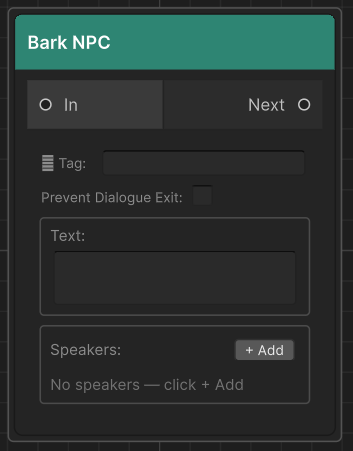
The bark-graph equivalent of NPC Node — one shared line of text plus a list of per-speaker entries (audio clip, Line Key, animator actions). At runtime the entry whose Speaker Name matches the calling BarkSource.speakerName (or the speakerName argument passed to PlayBark()) is selected, so several NPC "types" that share one bark graph (e.g. Male Villager, Female Guard) can each play their own voice line and animation from the same node.
Only available in bark graphs. Bark NPC Node replaces NPC Node in the CREATE sidebar's Dialogue category when Graph Type is set to Bark; it is hidden entirely in Dialogue graphs.
Fields
Text
The shared line text shown regardless of which speaker delivers it. Supports {varName} tokens.
Speakers (+ Add Speaker)
| Field | Description |
|---|---|
| Speaker Name | Dropdown scoped to this graph's Bark Speakers list (configured in the SPEAKERS sidebar from your assigned BarkSpeakerRoster assets) |
| Clip | Inline fallback AudioClip for this speaker. Used only when no Line Sheet row overrides it. |
| Line Key | Inline fallback Line Key for middleware providers (FMOD/Wwise). See Audio — Line Keys. |
| Animator Actions | Inline fallback list of animator parameter actions for this speaker |
| ✕ | Removes this speaker entry |
Line Data (button)
Opens the same kind of per-node popup as NPC Node's Line Data button, scoped to this node's speakers. When a Line Sheet row exists for this node and the active language, its PreviewText, per-speaker Clip, and per-speaker Line Key take priority over the inline Speakers fields above — the inline fields remain as a no-line-sheet-required fallback. See Bark System — multi-speaker barks for the full setup (creating a BarkSpeakerRoster, assigning it, and populating the graph's Bark Speakers list).
Player Choice Node [C]
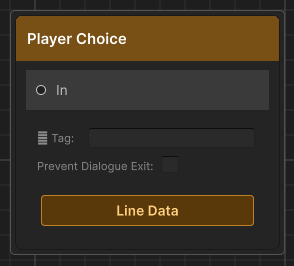
Presents the player with a list of choices. Each choice is its own output port connecting to a separate branch. Unlike NPC nodes, the runner does not auto-advance — it waits for SelectChoice(index) to be called, which your UI does when the player clicks a button.
Execution order
- Runtime keys are stamped on each choice:
{nodeGuid}:{choiceIndex} - Conditions are evaluated on each choice (inline variable conditions first, then ConditionDefinition)
OnChoiceNodefires with the evaluated list- UI displays choices; player picks one
SelectChoice(index)is called → execution follows that choice's output port
Fields
Choice cards (+ Add Choice)
Each card has:
| Field | Description |
|---|---|
| Text | The choice label shown to the player. Supports {varName} tokens. |
| Output port | Drag from this port to the node for this branch |
| ✕ button | Removes this choice card and its output port |
Conditions (+ Add inside a choice card)
All condition rows use AND logic — every row must pass for the choice to be selectable.
| Field | Description |
|---|---|
| Variable | Dropdown of names from your DialogueVariables assets |
| Operator | Equal / NotEqual / GreaterThan (>) / GreaterOrEqual (>=) / LessThan (<) / LessOrEqual (<=). Numeric operators are hidden automatically for Bool and String variables. |
| Value | Type-aware field — checkbox for Bool, integer field for Int, text field for String. Updates automatically when you change the variable. |
| Hide | Checked = completely hide this choice when the condition fails. Unchecked = show greyed-out and locked. |
| NOT | Inverts this individual row's result before it contributes to the AND chain |
| ✕ | Removes this condition row |
When a condition fails and Hide is unchecked, the choice shows in the UI with an is-locked USS class — typically rendered greyed out and unclickable, with IsLocked = true on the ChoiceData.
When Hide is checked, IsHidden = true on the ChoiceData and the built-in DialogueUI removes it from the list entirely. If you build a custom UI, filter out IsHidden choices before rendering.
Condition Definition [Custom] (foldout inside each choice card)
An optional advanced condition linking a ConditionDefinition asset to a C# handler. Expand the Condition Definition [Custom] foldout inside the choice card.
| Field | Description |
|---|---|
| Asset field | Click the object picker (⊙) and select a ConditionDefinition ScriptableObject |
| Parameter | String passed to ConditionService.Evaluate(def, param) |
| Negate | Inverts the C# condition result |
This condition is evaluated after all inline variable conditions. If any inline condition already failed, this is not evaluated (the choice is already locked).
The Condition Definition foldout auto-expands when an asset is already assigned.
End Node [E]
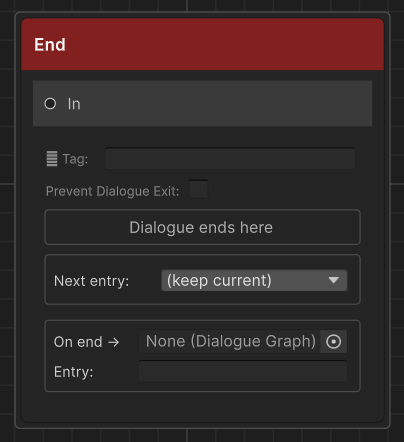
Terminates the current dialogue. Clears CurrentActor, releases blocking, hides the UI, then fires OnDialogueEnd and OnDialogueEnded. CurrentActor is already null by the time OnDialogueEnd subscribers are notified.
Fields
Next entry (dropdown)
Sets the actor's active entry point for the next conversation before dialogue ends.
| Value | Effect |
|---|---|
| (keep current) | Actor's entry point is unchanged after this conversation |
| Any named key | Actor's ActiveEntryPointKey is set to that key automatically |
This is how you advance NPC story state without a single line of code. Only entry points defined in the current graph appear in the dropdown.
See Entry Points for the full workflow.
On end → (sub-graph slot)
An optional DialogueGraph asset field and entry point key. When a graph is assigned here:
- The
Next entryswitch fires first — the actor's entry point is updated - The assigned graph runs as a sub-routine
- When that sub-graph's End node is reached, the conversation truly closes
This is useful for routing a quest NPC back to generic idle lines automatically when a unique quest conversation ends — without duplicating a single line.
Branch Node [B]
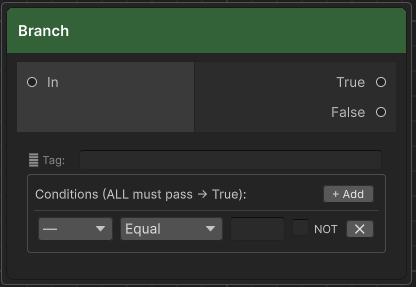
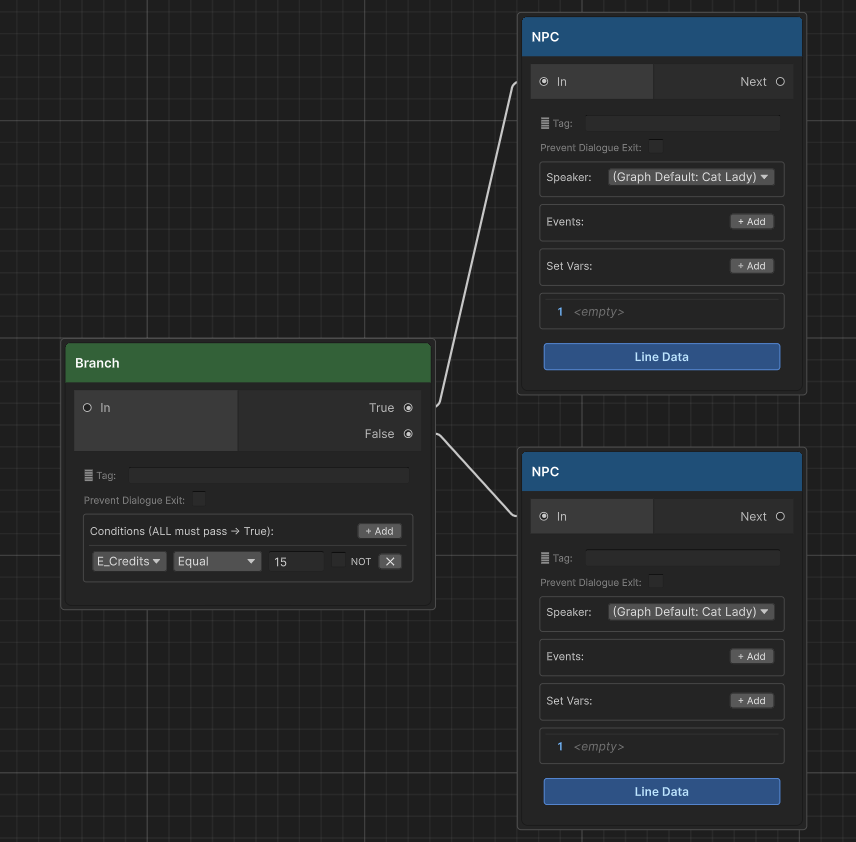
Silently evaluates one or more variable conditions and routes execution to a True or False output port. No dialogue is shown — execution passes through immediately.
Execution order
- All condition rows are evaluated in list order (AND logic)
- If all pass → True port is followed
- If any fail → False port is followed
- If a port has no connection → dialogue ends
Fields
Conditions use the same fields as Player Choice inline conditions (Variable, Operator, Value, NOT, ✕), but there is no Hide checkbox — Branch nodes are never visible to the player.
The Negate toggle on each condition row inverts that row's result before it contributes to the AND chain, exactly as it works on Player Choice inline conditions.
Switch Node [S]
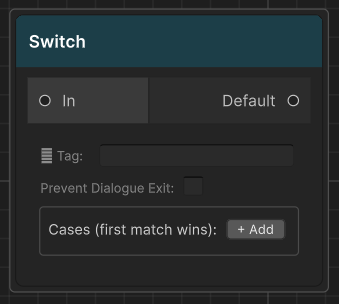
Silently evaluates multiple named cases in order and routes execution to the first case whose conditions all pass. If no case matches, execution follows the Default output. No dialogue is shown — execution passes through immediately.
Use Switch nodes when you have more than two possible paths based on variable state — for example, routing to different dialogue branches depending on a quest phase (not started / in progress / complete / failed).
Execution order
- Cases are evaluated top-to-bottom in list order
- Each case evaluates all its condition rows with AND logic (same as Branch)
- The first case where all conditions pass wins — execution follows that case's output port
- If no case passes → the Default output port is followed
- If the selected port has no connection → dialogue ends
Fields
Cases (+ Add Case)
Each case has:
| Field | Description |
|---|---|
| Label | A human-readable name for the case (displayed on the node and in the editor). Purely organisational — has no effect on execution. |
| Conditions (+ Add) | One or more variable conditions using the same fields as Branch Node conditions (Variable, Operator, Value, NOT). All conditions use AND logic. |
| Output port | Drag from this port to the node for this case's branch |
| ✕ | Removes this case |
Default output
A separate output port that fires when none of the cases match. Always present — cannot be removed.
Weighted Random Node [W]
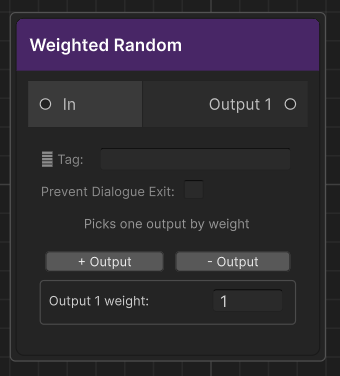
Picks one of its output ports at random using weighted probability. Outputs with higher weights are selected more often. No dialogue is shown — execution passes through immediately.
Use Weighted Random when you want some outcomes to be more likely than others — for example, a common greeting 70% of the time and a rare greeting 10% of the time.
Fields
Outputs (+ Add Output)
Each output has:
| Field | Description |
|---|---|
| Weight | A float value (minimum 0). Higher values mean higher probability relative to other outputs. |
| Output port | Drag from this port to the node for this branch |
| ✕ | Removes this output |
Weights are relative — they do not need to sum to 1 or 100. The probability of each output is weight / totalWeight. For example, if three outputs have weights 3, 2, and 1, their probabilities are 50%, 33%, and 17%.
At least one output with a weight greater than 0 is required. If a selected output has no connection, dialogue ends.
For equal-probability random selection, use the Random Node instead.
Sub Graph Node [F6]
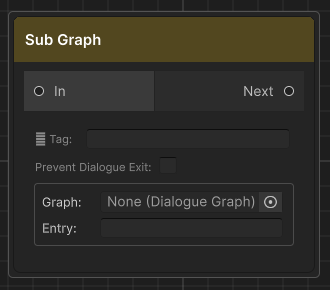
Delegates execution to another DialogueGraph asset, then returns and continues from the connected output — exactly like a function call in code. Use it to share common dialogue sequences (generic greetings, shop flows, idle lines) across many different NPC graphs without duplicating content.
Fields
| Field | Description |
|---|---|
| Graph | The DialogueGraph asset to call. Drag from the Project window or use the object picker. |
| Entry Point | Optional entry point key. Leave blank to start from the sub-graph's default start node. |
Speaker resolution
NPC nodes inside the sub-graph resolve speaker name through a three-level chain:
- Node Speaker — the speaker set directly on that NPC node
- Graph Default Speaker — the
DefaultSpeakerNameset on the sub-graph itself - Calling actor's speaker name — the
SpeakerNamefrom theIDialogueActorthat started the top-level conversation
This means a shared graph with blank speaker fields will automatically display and look at whoever triggered the dialogue — no extra setup required.
Depth limit
Sub-graphs can be nested up to 16 levels deep. Exceeding this limit logs an error and ends the dialogue cleanly to prevent infinite loops.
End Node "On end →" sub-graph slot
The End Node has an optional graph reference and entry point key in its On end → section. When set, that graph runs as a sub-routine before the conversation truly closes — useful for routing an NPC back to generic idle lines after a quest-specific conversation. The Next entry switch fires first so the actor's entry point is already updated while the sub-graph plays.
Not available in bark graphs. Sub Graph Node is hidden from the sidebar and context menu when Graph Type is set to Bark.
See Sub-Graph for full patterns and use-case walkthroughs.
Set Variable Node [V]
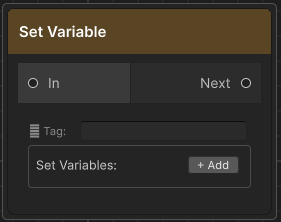
Silently applies one or more variable write operations and advances. No dialogue is shown.
Use this when you need to write variables at a precise point in the flow without attaching the action to an NPC node. Useful for:
- Setting flags at the start or end of a branch
- Initialising counters before a looping section
- Marking story progression at dead-end branches
Fields
Same as the Set Vars section on a NPC Node (Variable Name, Operator, Value). Multiple rows are applied in list order.
The value field is type-aware — it shows a checkbox for Bool variables, an integer field for Int variables, and a text field for String variables. The operator dropdown hides options that don't apply to the selected type (Add/Subtract hidden for Bool/String; Toggle hidden for Int/String; value field hidden entirely when operator is Toggle).
Random Node [R]
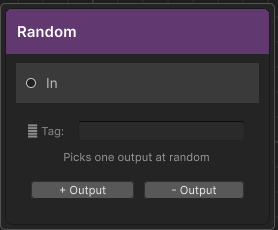
Picks one of its output ports at random each time it is reached. Every output has equal probability — there is no weighting system.
Fields
| Control | Description |
|---|---|
| + Output | Adds a new output port (labelled Output 1, Output 2, …) |
| − Output | Removes the last output port |
Each output port connects to a separate branch. At least one output is required. If a selected output has no connection, dialogue ends.
Practical uses: ambient NPC variety (different greetings on repeat visits), randomised story fragments, loot tables embedded in narrative.
Jump Node [J]
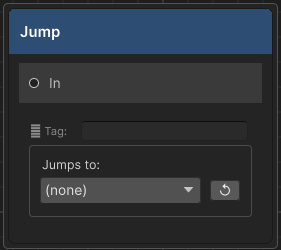
Redirects execution to any node in the same graph identified by its ⚐ Tag (Return Tag). Has no output port. Execution jumps immediately — no dialogue is shown.
Use Jump nodes to:
- Loop back to an earlier part of the graph (e.g. repeat a menu until the player picks "Goodbye")
- Share a common ending branch from multiple paths without drawing crossing edges
- Avoid long edges across large graphs
Fields
| Field | Description |
|---|---|
| Jumps to (dropdown) | Lists every ⚐ Tag set on a node in this graph. Select the target tag. |
| ↺ Refresh | Re-scans the graph for tags added after this Jump Node was placed |
The jump target is resolved by tag string at runtime. If the tag no longer exists in the graph when dialogue runs, the runner logs an error and ends the dialogue.
Set the ⚐ Tag on the target node, not on the Jump Node itself.
Debug Node [D]
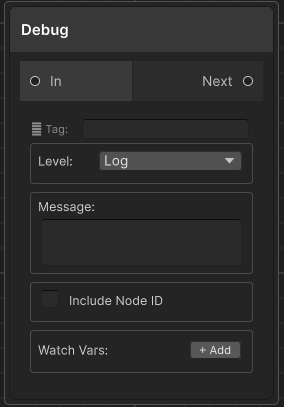
Logs a message to the Unity Console when reached. Passes through silently — the player never sees it. Execution continues to the connected output node immediately.
Fields
| Field | Description |
|---|---|
| Level | Log (white), Warning (yellow — node title bar turns yellow), Error (red — node title bar turns red) |
| Message | Text written to the Console. Multiline. |
| Include Node ID | Prepends the node's short GUID to the message, useful when multiple Debug nodes log similar text |
| Watch Vars (+ Add) | Variable name dropdown. The current runtime value of each listed variable is appended to the log output, e.g. [foundCat=true] [gold=42] |
The console prefix is color-coded by level: [<color=cyan>DialogueDebug</color>] for Log, yellow for Warning, red for Error — matching the color conventions used by all other Threader runtime logs.
Wait Node [F5]
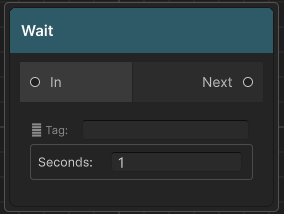
Pauses execution for a set duration in real-time seconds, then advances silently. No dialogue is shown.
Internally, DialogueManager starts a coroutine that calls runner.Continue() after the delay. The wait cannot be skipped by the player — it runs to completion regardless of input.
In the Dialogue Preview Window, the wait is skipped instantly so you can step through graphs without sitting through delays.
Fields
| Field | Description |
|---|---|
| Seconds | Float, minimum 0. A value of 0 advances on the next frame. |
Practical uses: dramatic pauses between automatic lines, pacing cutscene sequences, spacing between timed Play Audio clips.
Fire Event Node [F2]
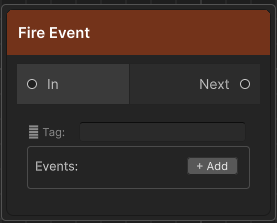
Silently broadcasts one or more named events and advances. No dialogue is shown. Uses the same OnNodeEvent / OnGlobalNodeEvent callbacks as NPC node events.
Use this when you need to trigger a game system at a precise point in the conversation flow without attaching the event to an NPC speak node — for example, triggering a door to open between two branches, or spawning an enemy after a dramatic reveal.
Fields
| Field | Description |
|---|---|
| Key | The event string. Received by OnNodeEvent subscribers. See Events. |
| Scope (dropdown) | Local — fires OnNodeEvent only. Global — fires both OnNodeEvent and OnGlobalNodeEvent. See Events — Local vs Global. |
| ✕ | Removes this event row |
Multiple events are fired in list order.
Play Audio Node [F3]
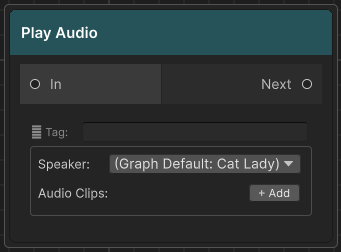
Plays one or more AudioClip assets and advances immediately — it does not wait for playback to finish. All clips fire in list order via the DialogueManager's audio sources.
Fields
| Field | Description |
|---|---|
| Speaker | Name of the registered speaker whose world position is used for 3D spatial audio. Leave blank to fall back through: graph's Default Speaker → current actor's speaker name. If none resolves or no matching speaker is registered, the 2D fallback source on the DialogueManager is used instead. |
| Audio Clips (+ Add) | AudioClip object fields. Drag assets in. Null slots are skipped. Used by the default UnityAudioProvider. |
| Audio Event Keys (+ Add) | Optional event key strings, one per slot. Index N of Audio Event Keys corresponds to index N of Audio Clips. Each key is passed to IDialogueAudioProvider.Play() as the lineKey parameter. Use these with FMOD or Wwise backends — set the event key here instead of (or alongside) an AudioClip. Empty strings are skipped alongside a null clip. |
| ✕ | Removes a slot |
Because Play Audio Node advances immediately, it's best for short stings and sound effects. For per-speaker voice lines that the dialogue waits for, assign clips and Line Keys in the graph's Line Sheet.
Animator Trigger Node [F4]
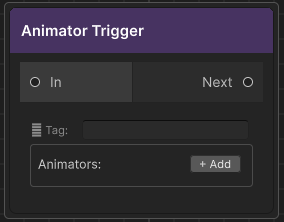
Silently sets one or more Animator parameters on registered speakers and advances. No dialogue is shown.
Use this to trigger animations at precise moments in dialogue flow without tying them to an NPC speak node — for example, playing a gesture animation between two NPC lines, or triggering a walk cycle after a dialogue branch resolves.
Fields
Each action card has:
| Field | Description |
|---|---|
| Parameter Name | Exact Animator parameter name (case-sensitive) |
| Type | Trigger / Bool / Int / Float |
| Value | Visible and editable for Bool, Int, Float. Hidden for Trigger. |
| Speaker (override) | Name of the registered speaker whose Animator to target. Blank = falls back through: graph's Default Speaker → current actor's speaker. |
| ✕ | Removes this action card |
The Animator is found via GetComponentInChildren<Animator>() called on the speaker's transform at RegisterSpeaker time (i.e. when the NPCDialogue component starts) and cached for the duration of the session. If no Animator is found at registration, a warning is logged and the action is skipped.
Shared: Return Tag (⚐ Tag field)
Every node has a ⚐ Tag field at the top. This is the node's Return Tag — a string identifier used exclusively as a Jump Node target.
- Leave blank if no Jump Node needs to target this node
- Tags must be unique within a graph (the validator will warn you about duplicates)
- Tags are resolved at runtime by string comparison — renaming a tag after a Jump Node references it will break the jump
The tag is displayed as a small badge on the node in the graph editor when set.
Shared: Prevent Dialogue Exit
Every node also has a Prevent Dialogue Exit toggle (shown below the ⚐ Tag field). When enabled:
DialogueManager.CancelDialogue()is a no-op while this node is active- The built-in Escape-key handler in
DialogueUIis ignored DialogueManager.CanCancelreturnsfalse
Use this to protect nodes that write variables, grant quest rewards, or play mandatory story beats that must not be interrupted. The validator will flag any locked node that has no reachable End node, since that would leave the player permanently stuck.